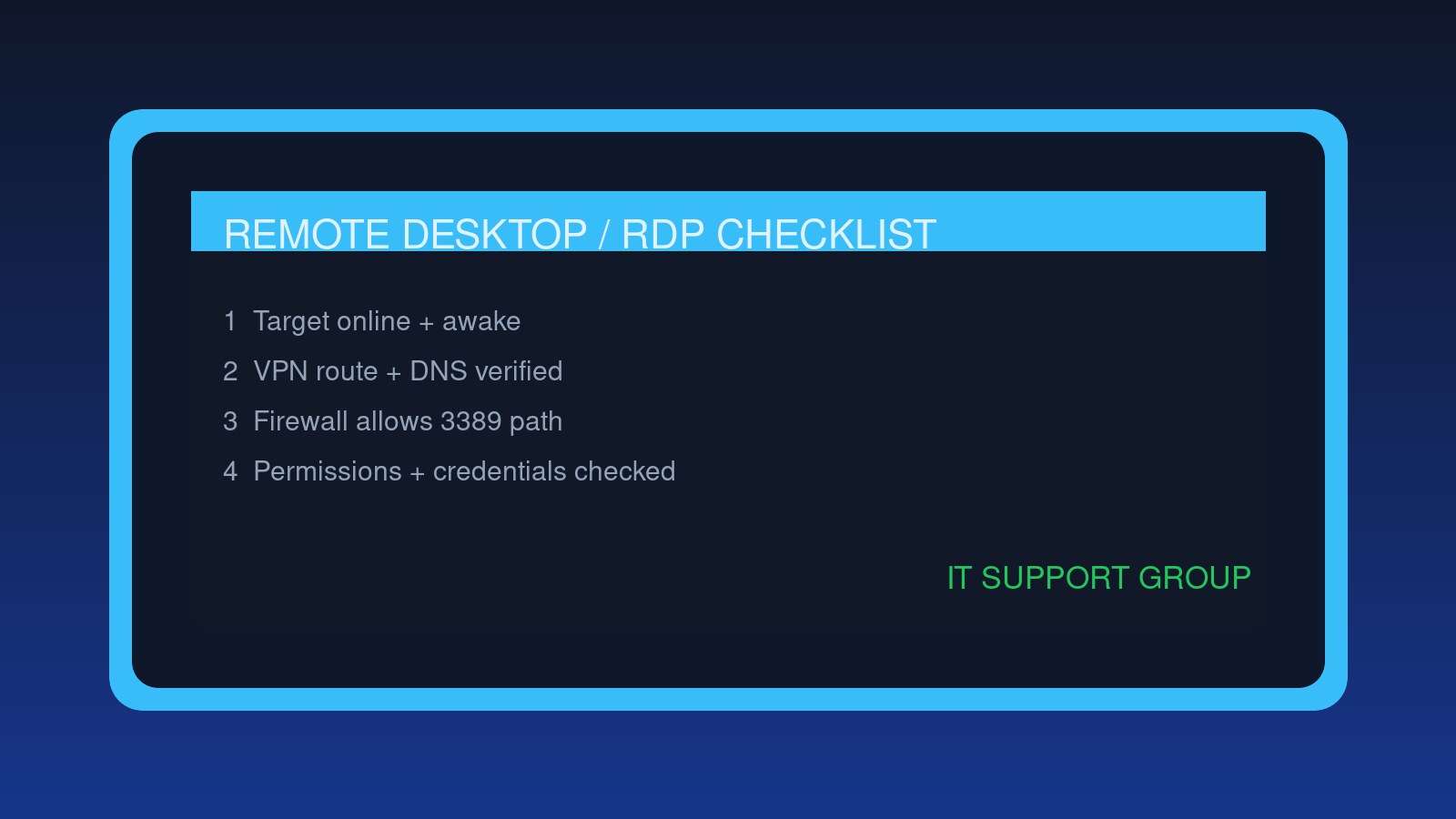
The short version: do not treat every Remote Desktop failure like a password problem. First confirm the target computer name, whether the device is awake and online, whether the user is on the right network or VPN, and whether RDP is enabled and allowed through the firewall. Then check permissions, credentials, session limits, DNS, and ticket notes.
RDP tickets are easy to make worse because the symptom is usually vague: “I can’t remote in.” That could mean the laptop is asleep, the user is off VPN, DNS points to the wrong machine, port 3389 is blocked, Remote Desktop is disabled, the user is not in the right group, or Network Level Authentication is rejecting the sign-in.
Use this checklist for normal help desk Remote Desktop issues: connection timeouts, “your credentials did not work,” missing access, post-reimage failures, VPN-only access problems, and internal admin connections. If the issue is public internet RDP exposure, stop and escalate.
The RDP troubleshooting checklist
| Step | What to check | Why it matters |
|---|---|---|
| 1 | Confirm the exact target and error | ”RDP failed” is not enough to troubleshoot |
| 2 | Verify the machine is online and reachable | Sleep, power, DNS, and network path break RDP before login |
| 3 | Confirm VPN or internal network access | Many RDP hosts should only be reachable privately |
| 4 | Check whether Remote Desktop is enabled | Windows blocks inbound RDP unless configured |
| 5 | Verify firewall and port 3389 path | Timeouts usually point to reachability or filtering |
| 6 | Check user permissions and credentials | Rejections after connection are often access or identity issues |
| 7 | Review session limits, locks, and policy | The host may be reachable but unavailable |
| 8 | Document the exact fix and final test | Saves the next tech from resetting passwords blindly |
1. Get the ticket out of “remote desktop is broken” mode
Start by collecting facts before changing anything:
- Exact computer name, asset tag, or IP address the user is trying to reach
- Exact error message or screenshot
- Whether the failure is timeout, credential rejection, certificate warning, black screen, disconnect, or slow session
- Whether the user is on the corporate network, home network, hotspot, or VPN
- Whether other admins can RDP to the same machine
- Whether the user could connect before
- Whether anything changed: password, MFA, VPN client, laptop replacement, reimage, firewall policy, or group membership
A useful first ticket note looks like this:
User cannot RDP from home laptop to
WS-0421. Error says “Remote Desktop can’t connect to the remote computer.” User is connected to VPN and can reach intranet. RDP worked last week before workstation replacement.
That tells you it is probably not “the internet is down.” It might be the new workstation, DNS, VPN route, firewall profile, RDP setting, or access group.
2. Verify the target device is awake, powered on, and reachable
RDP cannot connect to a sleeping laptop in a bag, a powered-off workstation, a device on the wrong VLAN, or a computer that changed names during imaging.
Before touching credentials, check:
- Is the computer powered on?
- Is it connected by Ethernet or known-good Wi-Fi?
- Is the hostname still correct?
- Does the device show online in your RMM, Intune, AD, or endpoint tool?
- Can you ping it if ICMP is allowed?
- Can you resolve the hostname to the expected IP?
- Did DHCP give it a new address?
Do not over-trust ping. Some networks block ICMP. Use it as one clue, not a verdict. If your tools show the device online but hostname lookup points somewhere weird, treat it like DNS or inventory before blaming RDP.
If basic name resolution is suspicious, compare the situation with the DNS troubleshooting guide. If the device is only reachable across VPN, use the VPN troubleshooting checklist before you spend 30 minutes staring at the RDP client.
3. Confirm the user is on the right network or VPN
Most business RDP should live behind private access: internal network, VPN, zero-trust connector, jump box, or a managed remote support tool. If the user is at home and not connected to the right access path, RDP should fail.
Check:
- Is VPN connected and healthy?
- Does the VPN route include the subnet where the target computer lives?
- Can the user reach other internal resources?
- Is split tunneling expected or causing confusion?
- Is the user on a guest Wi-Fi network that blocks VPN or remote access?
- Did conditional access, MFA, or device compliance block VPN sign-in?
A classic trap: the user says “VPN is connected” because the icon is green, but their session is stale, connected to the wrong profile, or missing routes. Have them reconnect only after you capture the current error and route clues.
If multiple users cannot RDP to the same subnet after a firewall change, escalate it as a network or security policy issue with examples.
4. Check whether Remote Desktop is enabled on the host
Windows Pro, Enterprise, and Server editions can host RDP in normal business setups. Windows Home is not an RDP host.
Check the host side:
- Remote Desktop is enabled.
- The computer allows connections from expected clients.
- Network Level Authentication is configured according to policy.
- The device is domain joined, Entra joined, or managed the way your environment expects.
- Recent imaging or profile reset did not leave the setting disabled.
After a replacement or rebuild, do not assume the old setting carried over. New device, new policy timing, new firewall state. If the device was just replaced, compare the workflow with the laptop replacement checklist so you do not miss naming, group, and enrollment steps.
5. Check Windows Firewall and port 3389 path
RDP uses TCP port 3389 by default. You do not need to memorize that for the ticket if your tools tell you, but it matters when you are separating a timeout from a credential problem.
Use the symptom:
| Symptom | Likely direction | What to check next |
|---|---|---|
| Connection times out | Network path, firewall, sleeping host, wrong IP | VPN route, firewall rule, hostname, host online state |
| Immediate credential error | Authentication or permission | Username format, password, group membership, NLA |
| Certificate warning | Host identity or certificate mismatch | Confirm hostname, recent rebuild, expected cert behavior |
| Connects then black screen | Profile, session, graphics, resource issue | Existing sessions, host load, profile health |
| Disconnects after login | Policy, licensing, session host issue | Event logs, RDS policy, session limits |
For port-focused study, the Network+ common ports practice questions cover why 3389 maps to RDP. In a real help desk ticket, the practical question is: can traffic from this client reach that host on the RDP path?
Avoid opening broad firewall rules as a quick fix. If policy says RDP should only work from a management subnet or VPN pool, honor that boundary. “It works after I opened it to everyone” is not a solution. It is a future incident report.
6. Verify permissions, groups, and username format
If the RDP client reaches the host but login fails, shift from reachability to identity.
Check:
- Is the username entered in the expected format:
DOMAIN\\user,[email protected], local account, or Entra ID format? - Did the user recently change their password?
- Is the account locked, disabled, expired, or missing MFA/device requirements upstream?
- Is the user allowed to log on through Remote Desktop Services?
- Is the user in the right local Remote Desktop Users group, admin group, or managed access group?
- Did a GPO, Intune policy, or local security policy remove access?
- Is the host rejecting cached or stale credentials?
Do not reset the password as your first move. If a user can sign into email and VPN but not RDP, the problem may be permission, username format, cached credentials, or host policy. If there are lockouts, use the account lockout troubleshooting checklist instead of guessing.
A boring test: have another known-authorized admin connect to the same host. If they can connect, the path is probably fine and the user’s permission or credential path needs attention. If nobody can connect, keep looking at the host or network.
7. Watch for session limits, locked sessions, and host health
Sometimes RDP technically works, but the session is unusable.
Check for:
- Too many sessions already connected
- A disconnected session stuck in a weird state
- Host CPU, memory, or disk exhaustion
- Windows updates pending reboot
- Broken user profile after a profile reset or migration
- RDS licensing or session host policy issues in server environments
- Display scaling or multi-monitor problems causing a black screen
For a single workstation, a reboot may be reasonable after you verify no one will lose work. For servers or shared session hosts, do not casually reboot because one person has a black screen. Check active sessions, change windows, monitoring, and escalation rules.
If the issue smells like a corrupted Windows profile, compare it with the Windows profile reset checklist before deleting anything. Profiles are where “quick fixes” become archaeological digs.
Copy-paste ticket checklist
Scope:
[ ] Target hostname/IP/asset tag captured
[ ] Exact RDP error or screenshot captured
[ ] Confirmed timeout vs credential error vs black screen vs disconnect
[ ] Confirmed user location, network, and VPN status
[ ] Checked whether other users/admins can connect

Reachability:
[ ] Target device is powered on, awake, and online in management tools
[ ] Hostname resolves to expected device/IP
[ ] VPN route or internal network path confirmed
[ ] Remote Desktop enabled on the host
[ ] Windows firewall/RDP rule checked according to policy
[ ] Port/path filtering considered for timeouts

Access:
[ ] Username format verified
[ ] Account lock/disabled/password state checked
[ ] Remote Desktop Users/admin/access group membership verified
[ ] GPO/Intune/local policy checked if permissions look wrong
[ ] Existing sessions, host load, and reboot/update state reviewed

Closeout:
[ ] User or admin performed successful test connection
[ ] No broad unsafe firewall exposure added
[ ] Root cause or best evidence documented
[ ] Ticket notes include final fix and verification
Example ticket notes
User could not RDP to
WS-0421from home. VPN connected, but route to workstation subnet was missing after client update. User could reach intranet but not workstation subnet. Reconnected VPN with updated profile, confirmed hostname resolved to correct IP, RDP login succeeded, and user opened required app. No password reset performed.
Admin could reach
SRV-FILES-02, but user received “credentials did not work.” Confirmed RDP path worked with admin account. User was not in managed Remote Desktop access group after department move. Added user through approved group process, waited for policy update, confirmed RDP login worked. Documented access group and approval ticket.
Good notes say what failed, what comparison narrowed it down, what changed, and how you know it worked. For more wording patterns, use the help desk ticket notes examples.
FAQ
What port does RDP use?
RDP uses TCP port 3389 by default. In most managed environments, you should not expose that port directly to the public internet. Keep RDP behind VPN, a jump host, zero-trust access, or another approved remote access method.
Why does RDP time out but not show a password prompt?
A timeout usually means the client is not reaching the RDP service. Check whether the host is online, whether the hostname resolves correctly, whether the user is on VPN/internal network, and whether firewall or routing rules allow the path.
Why do credentials fail even when the password is correct?
The account may not be allowed to log in through RDP, the username format may be wrong, the host may require a different domain/local account format, or policy may deny remote logon. Verify access groups before resetting the password.
Should help desk enable RDP for users?
Only if your company’s policy allows it for that device and user. Enabling RDP changes the attack surface. For routine user support, a managed remote support tool may be safer than letting users RDP into workstations.
Bottom line
RDP troubleshooting is mostly about separating reachability from authentication. If the client never reaches the host, check power, network, VPN, DNS, firewall, and whether RDP is enabled. If the client reaches the host but login fails, check username format, permissions, group membership, account state, and policy.
Do the boring comparisons first. A clean RDP ticket should end with a verified connection, no unsafe firewall shortcuts, and notes clear enough that the next person does not start with a password reset.