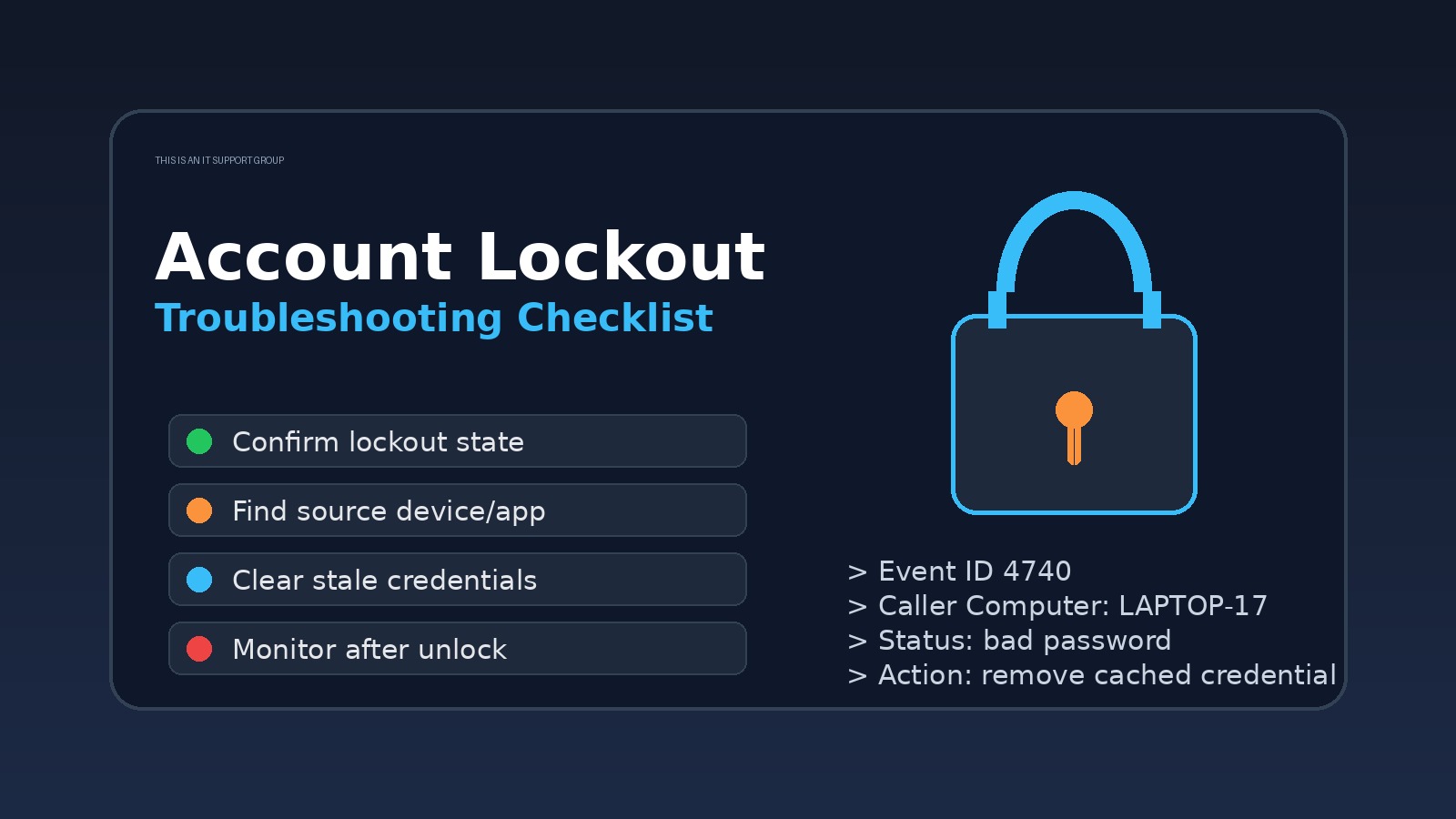
A user getting locked out over and over is not a password reset problem. It is a source-finding problem. Resetting the password may get them working for five minutes, but the lockout will come back if an old phone, mapped drive, VPN client, scheduled task, or service is still trying the wrong credentials.
The practical answer: confirm the lockout, find the device or app causing failed logons, remove the stale credential, then document the pattern so it does not become tomorrow’s ticket too.
This checklist is for help desk and junior sysadmin work in Windows/Active Directory environments. Adjust the exact tools for your stack, but keep the order. Random guessing is how account lockouts become a whole afternoon.
Quick triage: what kind of lockout is this?
Start by separating a normal bad-password event from a recurring lockout loop.
| Symptom | Likely direction | First useful check |
|---|---|---|
| User mistyped password a few times | Human error | Unlock account, confirm sign-in works |
| Account locks again within minutes | Cached credentials | Find device/app still retrying |
| Lockouts happen only on VPN | VPN client, saved password, MFA flow | Check VPN logs and saved profiles |
| Lockouts happen after password change | Old password saved somewhere | Check phone, Outlook, mapped drives, browser passwords |
| Multiple users lock out at once | Service outage, policy, script, attack | Escalate and check domain/controller logs |
If multiple accounts are locking at the same time, stop treating it like a one-user help desk ticket. That may be a policy issue, application outage, authentication service problem, or security event.
The account lockout checklist
1. Confirm the basic account state
Before hunting ghosts, verify the obvious:
- Is the account actually locked?
- Is it disabled, expired, or outside allowed logon hours?
- Did the user recently change their password?
- Are they using the correct username format?
- Can they sign in from a clean known-good path, such as webmail or a domain-joined workstation?
This matters because users often say “locked out” when they mean “MFA did not prompt,” “my password expired,” “I am typing my old password,” or “the app is down.” Those are different tickets.
If you are new to the underlying environment, review our Active Directory tutorial for beginners and Group Policy basics guide. Account lockout settings usually live in domain password policy or fine-grained password policy, not inside the random app the user is mad at.
2. Ask what changed today
The fastest path is often one boring question: “What changed right before this started?”
Good follow-ups:
- Did you change your password recently?
- Did you get a new phone or laptop?
- Did you connect to VPN from a hotel, airport, or home network?
- Did Outlook, Teams, OneDrive, or a browser start prompting for sign-in?
- Did you save credentials for a mapped drive, printer, remote desktop, or admin tool?
- Do you use the same account for a scheduled task, service, script, or scanner?
Users may not know what a cached credential is, so translate it: “Is there anything still trying your old password in the background?“
3. Check the lockout source
In a typical AD environment, your best evidence comes from domain controller security logs or whatever identity tooling your organization uses. You are looking for the machine name, IP address, application, or authentication path tied to the failed attempts.
Common places to check:
- Domain controller security events for failed logons and lockouts
- Account lockout investigation tools your team already uses
- SIEM alerts or identity logs
- VPN concentrator logs
- Microsoft 365 / Entra sign-in logs if cloud auth is involved
- RADIUS/NPS logs for Wi-Fi or VPN authentication
Do not just unlock the account and hope. Find the source. The source is the ticket.
4. Clear the usual stale credential traps
Most recurring lockouts are boring. Boring is good. Boring is fixable.
Check these in order:
- Mobile devices — Mail apps, calendar apps, Wi-Fi profiles, and old device management profiles can hammer the account.
- Outlook and Microsoft apps — Outlook, Teams, OneDrive, Office activation, and cached work/school accounts can keep retrying.
- Windows Credential Manager — Remove stale saved credentials for file shares, RDP, intranet apps, and old server names.
- Mapped drives and network shares — A saved old password against
\\server\sharecan cause repeated failures. - VPN client profiles — Some clients cache credentials or retry aggressively after disconnects.
- Browsers — Password managers and saved enterprise app credentials can autofill the wrong password.
- Printers, scanners, and line-of-business apps — Shared devices sometimes use a real user account when they should use a service account.
If the lockout started right after a password change, start with mobile devices and saved credentials. If it started only when the user connects remotely, start with VPN, Wi-Fi, and mapped drives.
For adjacent triage, the same scope-first habit applies to VPN troubleshooting, email troubleshooting, and slow computer troubleshooting. Do not debug the whole universe. Narrow the failure path.
5. Watch the timing after unlock
Unlock the account, then watch what happens.
- Locks immediately: likely an automated process or device repeatedly trying.
- Locks when the user opens Outlook: check mail profile and Office credentials.
- Locks when the user connects VPN: check VPN profile, RADIUS/NPS, and saved auth.
- Locks after workstation login: check mapped drives, startup apps, scheduled tasks, and services.
- Locks only offsite: check mobile device, home Wi-Fi profile, VPN, or cached credentials.
Timing is evidence. Write it down in the ticket instead of keeping it in your head.
What to document in the ticket
Weak note:
User locked out. Reset password. Fixed.
Useful note:
User account locked three times after password change. DC logs pointed to LAPTOP-17. Removed stale Windows Credential Manager entry for old file server path and had user re-authenticate OneDrive. Account remained unlocked after 15-minute monitoring period. User confirmed Outlook, VPN, and shared drive access.
That second note helps the next tech, your future self, and your manager. It also turns a common help desk ticket into proof that you can troubleshoot with evidence.
If you are trying to move beyond basic password resets, this is exactly the kind of pattern to capture in a brag document or interview story. The career lesson is simple: troubleshooting with evidence is more valuable than closing the same low-context ticket again and again.
Escalate when you see these red flags
Escalate instead of silently grinding when:
- Multiple unrelated accounts lock out at once.
- The source is a server, service account, or domain controller.
- You see external login attempts, impossible travel, or suspicious locations.
- The account belongs to an admin, finance user, executive, or high-risk role.
- The user insists they did not attempt the failed logins.
- The lockout source is unknown after normal checks.
- Unlocking the account may violate security policy.
A lockout can be routine, but it can also be a sign of password spraying, compromised credentials, or a misconfigured service beating AD like a rented drum.
FAQ
Should I reset the password every time an account locks?
No. Unlock first if policy allows, then investigate the source. Resetting the password without clearing the stale credential often makes the loop worse because more devices now have the wrong password.
What is the most common cause after a password change?
Old credentials saved on a phone, Outlook profile, VPN client, Windows Credential Manager entry, mapped drive, or browser password manager. Start with whatever the user touched most recently.
How long should I monitor after unlocking?
Long enough to reproduce the user’s normal workflow: workstation login, email, VPN, shared drives, Teams, and any business app they use daily. Fifteen minutes is often enough for simple cases, but follow your team’s policy.
Is an account lockout always a security issue?
Not always. Most are stale credentials or user mistakes. But repeated unknown lockouts, admin-account lockouts, and lockouts from strange locations deserve security attention.
Bottom line
Treat account lockouts like troubleshooting, not clerical work. Confirm the state, find the source, clear the stale credential, monitor the timing, and document the evidence. That is how you fix the user’s day without creating the same ticket again tomorrow.
If you want more practical support habits like this, join the IT Support Group newsletter and keep building the kind of troubleshooting judgment that actually shows up on the job.