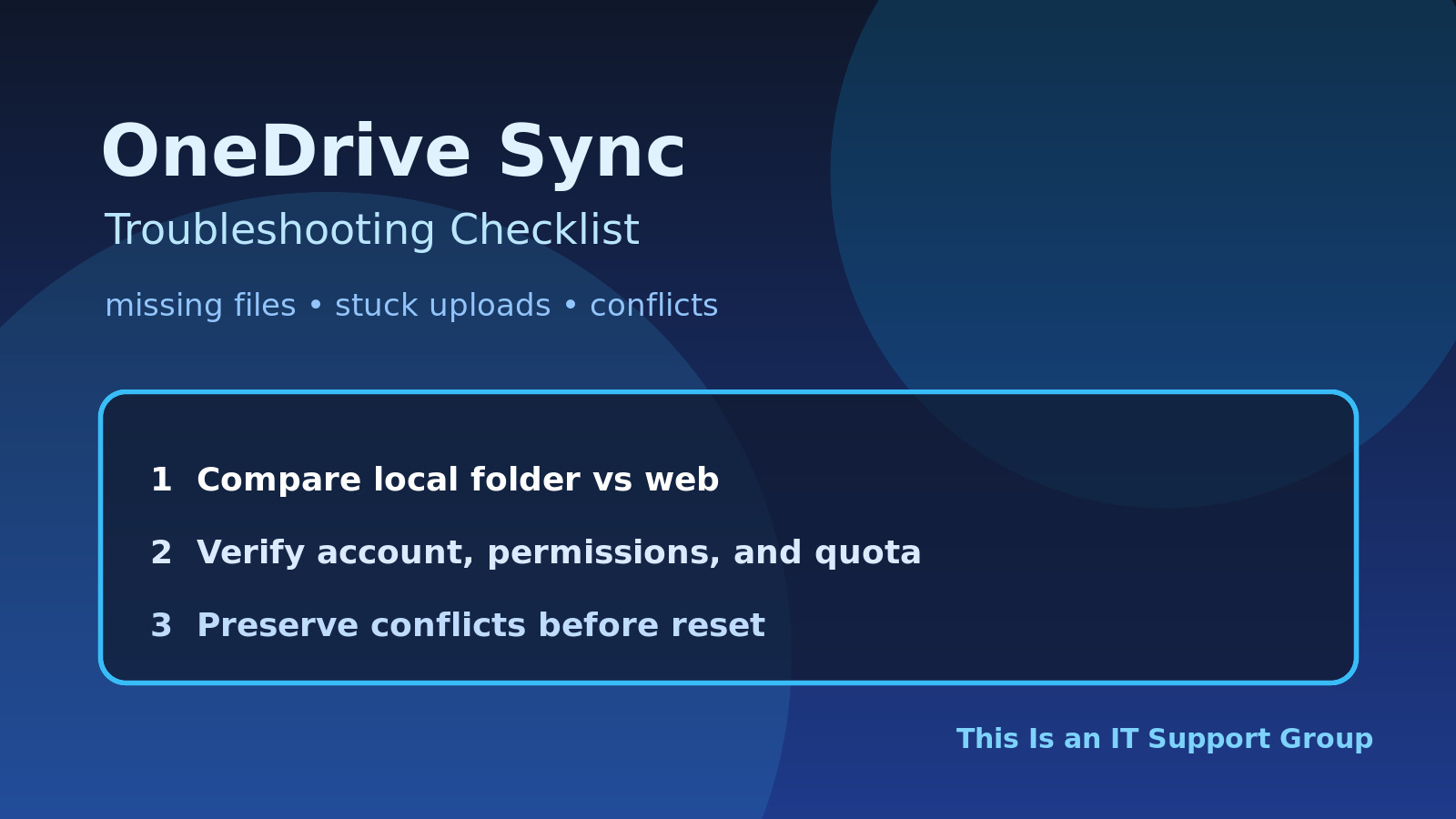
The short version: do not reset OneDrive just because the blue cloud icon looks unhappy. First confirm what is missing, whether the file exists locally or in the cloud, whether the user is signed into the right account, and whether the issue is one file, one folder, one device, or the whole tenant. Then fix sync health, path length, permissions, storage, conflicts, and ticket notes in that order.
OneDrive tickets are sneaky because the user usually reports the symptom as “my files are gone.” Sometimes they are gone. More often, the files are in the wrong account, stuck in a local pending state, blocked by a bad filename, hidden behind SharePoint permissions, or sitting safely in the web version while the desktop client throws a tantrum.
Use this checklist for normal help desk OneDrive and SharePoint sync issues: stuck uploads, missing Desktop/Documents files, duplicate conflict copies, sync client sign-in loops, and folders that will not appear on a replacement laptop. It is not a disaster-recovery plan for ransomware, mass deletion, or legal hold. Escalate those.
The OneDrive sync troubleshooting checklist
| Step | What to check | Why it matters |
|---|---|---|
| 1 | Confirm the exact missing or stuck file | Stops you from troubleshooting vibes |
| 2 | Compare local OneDrive and OneDrive on the web | Separates sync issues from data loss |
| 3 | Verify account, tenant, and license | Wrong account means wrong files |
| 4 | Check sync client status and error text | The icon usually tells you where to look |
| 5 | Fix path, filename, storage, and permission blockers | These cause many boring sync failures |
| 6 | Handle conflicts carefully | Prevents overwriting the user’s real work |
| 7 | Reset or resync only after evidence | Avoids creating a larger mess |
| 8 | Document what was verified and restored | Makes the next reopen less painful |
1. Start with the exact file, not “OneDrive is broken”
Ask the user for one concrete example before touching settings:
- File or folder name
- Last known location
- Last time they saw it working
- Whether they edited it from this device, another device, Teams, SharePoint, or a browser
- Whether other files are syncing normally
- Whether the issue started after a password change, laptop replacement, profile reset, license change, or offboarding/reboarding event
That last part matters. A user who just received a new laptop may have a setup problem. A user who just changed passwords may have a stale credential problem. A user who was recently moved between groups may have a permissions problem. A user who says “all my Desktop files are gone” may be dealing with Known Folder Move, not traditional OneDrive sync.
If the request is really a restore request, use the deleted file restore checklist first. If it started after a device swap, connect it to the laptop replacement checklist so you do not miss local folders.
2. Compare local files with OneDrive on the web
Before you reset anything, open OneDrive in the browser and check the same location.
You are trying to answer three questions:
- Does the file exist in OneDrive on the web?
- Does the file exist on the local device?
- Which copy is newer?
Common outcomes:
| What you see | Likely meaning | Next move |
|---|---|---|
| File exists on web, missing locally | Sync client or folder selection issue | Check client status and selected folders |
| File exists locally with pending icon, missing on web | Upload is stuck | Check filename, path, storage, network, and client errors |
| File missing both places | Possible deletion or wrong account | Check recycle bin, audit/history, and account |
| Two similar files exist | Conflict copy or duplicate save path | Compare timestamps before merging |
Do not trust memory here. Users often say “it was in OneDrive” when it was actually on the local Desktop, a network share, Teams files, SharePoint, Downloads, or a folder named “OneDrive backup” from an old migration. Verify the path.
3. Verify account, tenant, and license
OneDrive problems get weird fast when the user has multiple accounts.
Check:
- Is the sync client signed into the user’s current work account?
- Is the browser opened under the same account?
- Is there an old school, contractor, test, or personal Microsoft account signed in?
- Does the user still have a Microsoft 365 license that includes OneDrive?
- Has the user recently changed departments, domains, names, or UPNs?
- Is the device joined or enrolled the way your company expects?
Wrong-account sync is a classic help desk time sink. The user opens a file from personal OneDrive, edits it, then expects it in the company SharePoint library. Or the browser has one account, Office apps have another, and the sync client is quietly using a third. It is not elegant. It is extremely real.
For sign-in loops after password changes, compare the symptoms with the account lockout troubleshooting checklist. Stale credentials in Windows Credential Manager, Office cached identities, and old mapped resources can keep retrying with bad tokens.
4. Read the sync client status before making changes
The OneDrive icon is not decorative. Click it and read the message.
Look for:
- “Sync pending”
- “Processing changes”
- “Sign in”
- “OneDrive isn’t connected”
- “Your OneDrive is full”
- “You don’t have permission to sync this library”
- “This file name isn’t allowed”
- “We can’t sync this folder”
- “Upload blocked”
- “There are sync conflicts”
Capture the exact message in the ticket. A screenshot is fine, but write the plain-English version too. The next person should not have to zoom into a blurry notification from a remote session.
Also check whether the problem is only OneDrive or all network/cloud access. If websites, VPN, and file shares are also broken, this is not a OneDrive-first ticket. Start with connectivity or the Wi-Fi troubleshooting checklist instead.
5. Fix the boring blockers first
Most OneDrive sync problems come from boring blockers, not mysterious cloud failure.
Check these before resetting the client:
Filename and path issues
Look for unsupported characters, extremely long paths, trailing spaces, weird copied names, or folders nested 14 levels deep because someone turned project organization into a cry for help.
If only one file is stuck, rename it simply and test again. Do not resync an entire library because Final FINAL v7 / old? copy.xlsx is being dramatic.
Storage problems
Check both sides:
- Is the user’s local disk full?
- Is the user’s OneDrive storage full?
- Is a SharePoint site or document library hitting a quota?
- Is Files On-Demand enabled or disabled in a way that conflicts with the user’s expectations?
A full local disk can block downloads. A full cloud quota can block uploads. They feel similar to the user and completely different to the fix.
Permissions and sharing
For SharePoint and Teams-backed folders, confirm the user still has access to the site, team, channel, or library. A folder can disappear from sync because the user lost permission, not because the client broke.
If the issue is really “this person needs access,” compare it with the shared mailbox access checklist mindset: verify request, approval, scope, group membership, and documentation instead of randomly adding permissions until the complaint stops.
Network and VPN assumptions
OneDrive normally does not need VPN for cloud sync, but conditional access, proxies, SSL inspection, endpoint security, or captive portals can still break sign-in and upload. If the user is remote, test on a known-good network or hotspot when practical.
6. Handle sync conflicts without destroying work
Conflict copies are annoying, but they are also evidence. Do not delete them until you know which version matters.
A safe conflict workflow:
- Open both copies.
- Compare modified dates and authors.
- Ask the user which content is current if the difference is not obvious.
- Save the keeper with a clean name.
- Move the old copy to a temporary review folder if policy allows.
- Let OneDrive sync the clean version.
- Document which copy was preserved.
Never assume the newest timestamp is always the right file. Someone may have opened an old copy accidentally and made it “new” without adding the missing work.
7. Reset OneDrive only after you have evidence
A OneDrive reset or unlink/resync can help when the local sync database is stuck. It can also cause a long re-download, duplicate folders, confused users, and a ticket that used to involve one file but now involves everything.
Before reset:
- Confirm critical files exist in OneDrive on the web or are backed up locally.
- Pause sync and restart the client first.
- Reboot if the client is obviously hung.
- Fix account and permissions issues first.
- Check whether the issue affects only one library or the whole client.
- Tell the user what will happen: icons may change, files may rehydrate, and large libraries may take time.
If you unlink and relink, be careful with the destination folder. Accidentally syncing to a new path can make it look like files vanished when they are just sitting in the old local OneDrive folder.
For broader Windows profile weirdness, use the Windows profile reset checklist instead of treating OneDrive as the root cause by default.
Copy-paste ticket checklist
Scope:
[ ] Exact file/folder name and path captured
[ ] Issue affects one file, one folder, one library, one device, or multiple users
[ ] User confirmed when/where the file was last edited
[ ] Recent password/device/profile/license/permission changes checked

Verification:
[ ] Compared local OneDrive folder with OneDrive on the web
[ ] Confirmed user is signed into the correct work account
[ ] Checked OneDrive sync client status and exact error text
[ ] Checked local disk, OneDrive quota, and file path/name blockers
[ ] Checked SharePoint/Teams/library permissions if applicable
[ ] Checked recycle bin/version history if file is missing online

Fix/testing:
[ ] Restarted/pause-resumed sync before reset
[ ] Renamed or moved blocked file if needed
[ ] Preserved conflict copies until user confirmed keeper
[ ] Reset/unlinked OneDrive only after files were verified safe
[ ] Confirmed upload/download sync completed
[ ] User opened the file successfully from expected device/location
[ ] Ticket notes include root cause, files checked, and final test
Example ticket note
User reported Q2 budget workbook missing from Desktop. Confirmed Desktop is redirected through OneDrive Known Folder Move. File was present in OneDrive web under Desktop but not local device. OneDrive client signed into correct work account but showed “sync pending” on several files. Local disk had 900 MB free. Cleared space to 12 GB, restarted OneDrive, confirmed workbook downloaded and opened in Excel. User verified latest edits are present. No restore needed.
That note is boring in exactly the right way. It says what was missing, where it was found, what blocked sync, and how the fix was verified.
FAQ
Should I reset OneDrive as the first troubleshooting step?
No. Reset after you verify the file location, account, sync status, permissions, and basic blockers. Resetting too early can hide the original clue and create duplicate sync paths.
Why does OneDrive say files are synced when the user says files are missing?
Often the user is looking at the wrong folder, wrong account, or wrong SharePoint library. Compare local path, OneDrive web, Teams/SharePoint location, and account identity before assuming sync lied.
Are Teams files the same as OneDrive files?
Not exactly. Teams channel files usually live in SharePoint. OneDrive handles personal work files and can sync SharePoint libraries, but permissions and locations are different.
What is the biggest OneDrive help desk mistake?
Assuming cloud sync equals backup. Sync can copy deletions, conflicts, and bad local changes. For missing files, check recycle bin, version history, backups, and restore process before making big changes.
Bottom line
OneDrive troubleshooting is mostly scope discipline. Find the exact file, compare local versus web, verify the account, read the sync error, fix boring blockers, preserve conflicts, and reset only when the evidence points there. The goal is not to make the cloud icon pretty. The goal is to prove the user’s work is safe and syncing where they expect it.