Deleted file tickets sound simple until everyone starts guessing. A user says, “My file is gone,” but that can mean it was deleted, moved, renamed, overwritten, synced to the wrong place, hidden by permissions, or sitting in a recycle bin while three people panic in a Teams thread.
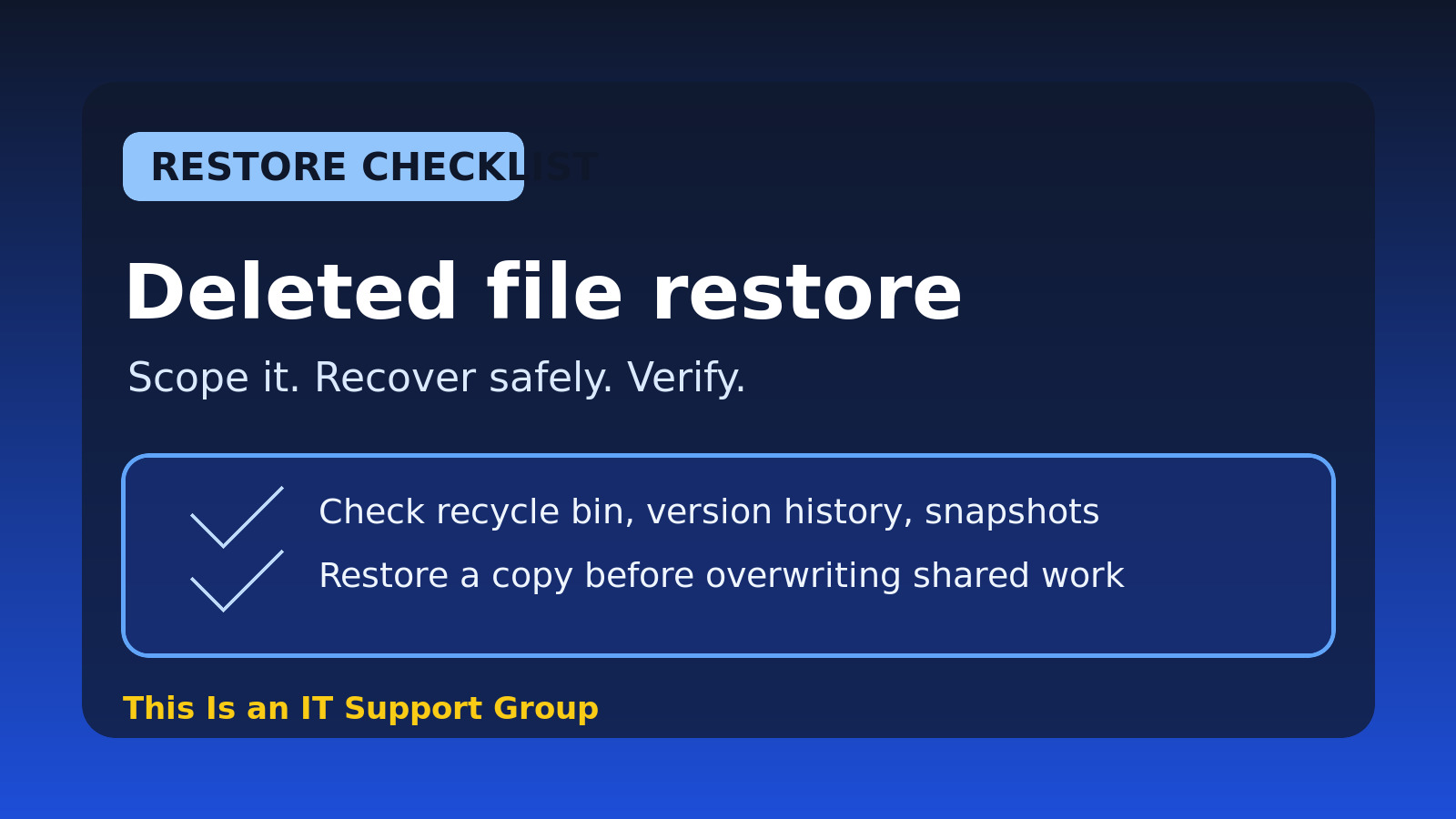
The short version: confirm what is missing, stop the user from making the damage worse, check the easiest recovery locations first, restore a copy safely, then document exactly what you did. Do not restore a whole folder over the top of live work because one spreadsheet disappeared.
Use this checklist for normal help desk restore requests: Windows files, shared drives, OneDrive, SharePoint, Google Drive, and similar business file storage. It is not a ransomware recovery plan.
The fast deleted file restore checklist
| Step | What you are trying to prove | Why it matters |
|---|---|---|
| Identify the file | Name, path, owner, app, last known date | “A file is gone” is not enough to restore safely |
| Confirm scope | One file, one folder, one user, or many users | Scope tells you whether this is user error or a bigger problem |
| Preserve the situation | Stop editing/syncing until you know what happened | New writes can overwrite recoverable versions |
| Check simple locations | Recycle bin, trash, version history, recent files | Fastest win, lowest risk |
| Restore as a copy first | Put recovered data somewhere safe | Avoid overwriting newer work |
| Verify with the user | User confirms the file opens and has expected contents | “Restored” means usable, not just present |
| Document the ticket | What was missing, source, restore point, result | The next tech needs a trail |
Step 1: Get the exact missing-file details
Start by turning the vague request into something you can actually search for.
Ask:
- What is the file or folder name? Get the exact spelling if possible.
- Where was it last seen? Desktop, Documents, shared drive path, Teams channel, SharePoint site, OneDrive folder, network share, app export folder?
- When did you last see it working? Today, yesterday, last week, before vacation?
- What changed right before it disappeared? Move, rename, sync conflict, laptop replacement, permissions change, offboarding, bulk cleanup?
- Who else uses it? One user’s file is different from a department share.
- Was it deleted, overwritten, or replaced with a bad version? Recovery path changes fast.
Step 2: Confirm whether this is really deleted
A lot of “deleted file” tickets are not deleted files.
Before touching backups, check the boring stuff:
- Search the folder for part of the file name.
- Sort by modified date.
- Check whether the user is in the wrong folder, library, or Teams channel.
- Check whether the file was renamed.
- Check whether the file was moved into a subfolder.
- Check whether permissions changed.
- Check whether OneDrive or SharePoint is showing a sync error.
- Check Recent files in Office or the relevant application.
For shared drive weirdness, this overlaps with the network share troubleshooting checklist. If the user gets “access denied,” you may have a permissions issue, not a restore issue.
Step 3: Stop making the restore harder
This is the part people skip because they want to look fast.
If a file was overwritten or deleted from a synced location, ask the user to pause and avoid creating new versions until you know what happened. If the issue involves a shared folder, tell the team not to keep dragging files around while IT investigates.
You are trying to avoid three common self-inflicted problems:
- Someone creates a new blank file with the same name.
- Sync clients propagate the bad state everywhere.
- A restore overwrites newer work because nobody checked timestamps.
If the deletion involved a departing employee, account compromise, or weird bulk activity, stop treating it as a normal user mistake. Pull in the owner, manager, security, or whoever owns data retention. The employee offboarding checklist has the safer access-preservation mindset.
Step 4: Check the easiest restore locations first
Do not jump straight to the enterprise backup console if the file is sitting in a recycle bin. Start with the lowest-risk places.
Local Windows recycle bin
If the file lived on the user’s local desktop or Documents folder, check the Recycle Bin. Restore from there if the user is sure it is the right file.
If the device is managed with Known Folder Move, OneDrive backup, redirected folders, or another sync tool, the “local” Desktop may actually be backed by cloud storage. Verify before assuming.
OneDrive, SharePoint, Teams, or Google Drive trash
Cloud storage usually has a recycle bin or trash area. Depending on the platform, there may be a first-stage and second-stage recycle bin, version history, audit logs, or admin restore options.
The practical help desk move:
- Check the user-visible recycle bin/trash first.
- Check version history if the file exists but has bad contents.
- Check site/library trash if it was in a shared location.
- Escalate to the admin-level restore path if the user view does not show it.
Do not promise a restore until you know retention windows. “We keep everything forever” is usually not true.
File server snapshots or previous versions
If the file lived on a Windows file server, right-click Previous Versions may help if Volume Shadow Copy is enabled. Other environments use snapshots through storage, backup software, or a NAS.
When you find a candidate version, compare:
- File name
- Path
- Modified date
- Size
- Owner or last editor if available
- Whether the user expected changes after that point
Restoring yesterday’s version is not helpful if five people updated the file this morning and only one tab is wrong.
Step 5: Restore to a safe location first
When possible, restore the file as a copy instead of directly replacing the live path.
Good restore targets:
- A temporary restore folder with restricted access.
- The user’s OneDrive restore folder.
- A clearly named folder like
Restored from 2026-06-12 backup. - A copy named
filename-restored-YYYY-MM-DD.ext.
Why this matters: users often realize after the restore that they needed a different version. If you overwrite live data immediately, now you have two problems: the original deletion and your restore mistake.
For shared files, ask the business owner before replacing the current version. If Finance owns the folder, Finance should confirm whether the restored copy should replace the current file.
Step 6: Verify the restored file actually works
A file existing in a folder does not mean the restore succeeded.
Verify:
- The user can open the file.
- The contents are the expected version.
- Permissions are correct.
- The file is in the right location.
- Other users who need it can access it.
- Sync status is clean if cloud storage is involved.
For Office files, ask the user to check the specific sheet, tab, document section, or date range they care about. “Looks good” after opening the file for half a second is how you get the same ticket reopened in 20 minutes.
Step 7: Write ticket notes that would help future-you
Deleted file restores are perfect candidates for clean notes because the same folder or user may come back later.
Use this structure:
- Reported symptom
- Exact file/folder path
- Scope checks
- Recovery source
- Restore destination
- User verification
- Any follow-up risk
Example closure note:
User reported
Q2-budget.xlsxmissing from\\fileserver\finance\2026\budget. Confirmed other Finance users could access folder and no broader share outage was present. Found file in previous-version snapshot from 2026-06-12 18:00. Restored copy to\\fileserver\finance\2026\budget\Restored-2026-06-13\Q2-budget.xlsxrather than overwriting live folder. User opened file, confirmed expected worksheet and totals, and asked Finance lead to review before moving it back. Ticket closed with no further restore needed.
That note tells the next tech exactly what happened. For more examples, use the help desk ticket notes examples.
Common restore scenarios and what to do
| Scenario | First checks | Safer action |
|---|---|---|
| User deleted a local desktop file | Recycle Bin, OneDrive backup, Recent files | Restore copy and confirm contents |
| User overwrote a spreadsheet | Version history, previous versions | Restore older version as copy first |
| File missing from shared drive | Search, permissions, previous versions, audit logs | Confirm scope before restore |
| SharePoint file gone | Site recycle bin, version history, library permissions | Restore through library/admin path |
| Whole folder missing | Audit/move/delete logs, manager confirmation | Escalate before mass restore |
| Files vanished after offboarding | Ownership transfer, retention, mailbox/drive policy | Follow HR/legal/security process |
| Many files renamed/encrypted | Endpoint alerts, user activity, file extension pattern | Treat as possible security incident |
When to escalate instead of restoring
Escalate if:
- Multiple users lost files at the same time.
- Files appear encrypted, renamed in bulk, or replaced with ransom notes.
- A former employee’s data is involved.
- The file may contain legal, HR, medical, financial, or regulated data.
- The requested restore would overwrite active shared work.
- The backup tool shows failed jobs or missing restore points.
- The user is asking for access to someone else’s files without approval.
Your job is not to be the hero with the fastest restore button. Your job is to recover the right data without creating a bigger incident.
A reusable deleted file restore checklist
Copy this into your internal docs or ticket template:
Deleted file restore checklist

Request details:
[ ] Exact file/folder name captured
[ ] Last known path captured
[ ] Last known good date/time captured
[ ] User/business owner confirmed
[ ] Deleted vs moved vs renamed vs overwritten clarified

Scope:
[ ] One user or multiple users checked
[ ] One file or folder/tree checked
[ ] Permissions/access issue ruled out
[ ] Sync errors checked if cloud storage involved
[ ] Security concern considered

Recovery source:
[ ] Recycle bin/trash checked
[ ] Version history checked
[ ] Previous versions/snapshots checked
[ ] Backup/admin restore path checked if needed
[ ] Retention window confirmed before promising restore

Restore:
[ ] Restored as copy first when possible
[ ] Original live file/folder not overwritten without approval
[ ] Permissions checked
[ ] User/business owner verified contents
[ ] Follow-up owner assigned if needed

Ticket notes:
[ ] File path documented
[ ] Restore source documented
[ ] Restore destination documented
[ ] Verification documented
[ ] Risk/escalation note added if applicable
FAQ
What is the first thing to check when a user deletes a file?
Start with the exact file name and location, then check the user-visible recycle bin or trash. If it is a cloud or shared location, also check version history and whether the file was moved or renamed before escalating to backups.
Should I restore directly over the missing file location?
Usually no. Restore as a copy first when possible, especially for shared folders or overwritten files. Let the user or folder owner confirm the recovered version before replacing anything live.
What if the user does not know the file name?
Ask for partial names, file type, app used, date last edited, folder location, screenshots, or Recent files from the application. Set expectations clearly if you still cannot identify it.
How long do deleted files stay recoverable?
It depends on the platform and company policy. Recycle bins, cloud trash, version history, snapshots, and backups all have different retention windows. Check the actual policy or admin console.
When is a deleted file ticket a security incident?
Treat it as suspicious if many files are deleted, renamed, encrypted, or affected after a strange sign-in, phishing report, offboarding event, or privileged account change. A normal accidental delete is a restore ticket. Bulk unexplained file loss is not normal.
Final thought
Deleted file restores are not about clicking the fanciest backup button. They are about slowing down just enough to restore the right thing: confirm the file, confirm the scope, check the easy recovery paths, restore safely, verify with the user, and write notes that make sense next week.
If you are building better help desk habits, pair this with the IT documentation best practices guide and the ticketing system best practices guide. Restores get a lot less stressful when the paths, owners, and policies are written down before the panic starts.