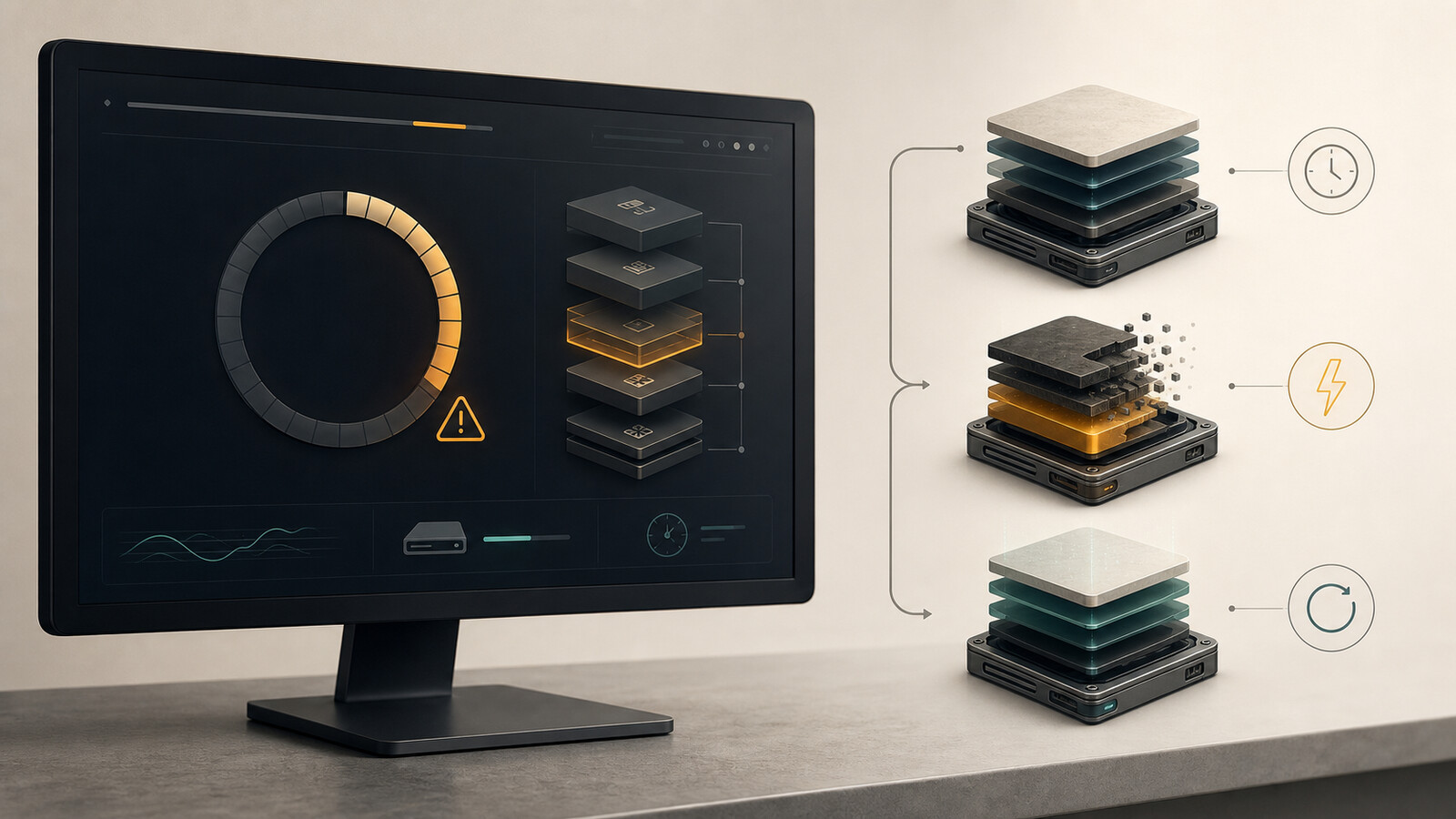
Windows Update troubleshooting should start with scope and evidence, not with deleting folders or hammering the restart button. Find out whether the problem is a stuck download, a failed installation, a restart loop, or a new issue that appeared after an update. Then capture the error code, update name, time, and affected devices before changing anything.
The short version: confirm the device has stable power, network access, correct time, and enough free storage. Restart once, retry from Settings, check the update history, and use the least destructive supported repair next. If the update is firmware or the machine is actively applying changes, do not force it off just because the progress screen is taking longer than expected.
This checklist is written for help-desk techs, desktop support, junior admins, and anyone who needs a ticket-ready process instead of “try random commands until Windows gives up.”
First, identify the failure stage
“Windows Update is broken” can mean several different things. The stage tells you where to investigate.
| Symptom | Start here |
|---|---|
| Update never appears | Device eligibility, update policy, deferral, edition/build, management state |
| Download stays at one percentage | Network, proxy/VPN, delivery service, free storage, update service state |
| Installation fails in Settings | Error code, update history, pending restart, component health |
| Failure happens during restart | Power, storage health, recovery status, recent driver or firmware update |
| Device boots but something broke afterward | Exact change, affected feature, driver/app compatibility, rollback window |
| Many devices fail on the same update | Deployment ring, policy, vendor issue, known issue, pause/escalation decision |
Do not treat these as the same ticket. A single laptop with a damaged component store needs different handling than fifty managed devices rejecting the same quality update.
1. Capture the evidence before retrying
Record enough detail that another technician can continue the work:
- Device name, Windows edition, version, and OS build
- Exact update name or KB number when shown
- Exact error code and wording
- Failure stage: detection, download, install, restart, or post-update
- Time of the latest failure
- Whether this affects one device, one site, or many devices
- Recent changes such as VPN, proxy, security tool, storage, driver, or policy changes
- Screenshot or photo of the failure when appropriate
Check Settings → Windows Update → Update history. Paths can move slightly between Windows releases, but the update history and error details are more useful than a user saying it “did the spinny thing and stopped.”
If you need deeper system evidence, the Windows Event Viewer troubleshooting checklist explains how to filter around a known timestamp without drowning in unrelated warnings.
2. Check scope and management state
Ask whether the device is personally managed, domain joined, Entra joined, or controlled by an RMM/MDM platform. A setting that appears disabled may be intentional policy, not corruption.
For a managed device, check:
- Is the update approved for this deployment ring?
- Is there an active deferral, pause, deadline, or maintenance window?
- Does the management console show a different failure reason?
- Are peer devices in the same ring succeeding?
- Is a VPN, proxy, or content filter required to reach the update source?
When many devices fail at the same time, stop making one-off local changes. Compare OS builds and update IDs, review deployment status, and escalate as a shared incident or change problem.
3. Run the boring prerequisite checks
These fix more tickets than elaborate repair rituals.
Stable power
Connect laptops to reliable AC power. Do not begin firmware, BIOS, or major feature-update work on a weak battery. If the screen explicitly says updates are being applied, avoid a forced shutdown unless your approved recovery procedure says the device is genuinely hung.
Network path
Confirm normal web access, then consider the update path:
- Disconnect an unnecessary personal VPN.
- Connect the required corporate VPN if policy depends on it.
- Check proxy settings and authentication.
- Compare wired, wireless, and another known-good network only when policy allows.
- Do not disable the firewall or endpoint protection as a casual test.
Free storage
Windows needs working space to download, stage, install, and roll back updates. Check the system drive and clean only known-safe items. Do not delete user data or recovery partitions to win a few gigabytes.
Date and time
A badly wrong clock can break certificate validation and update communication. Confirm the time, time zone, and synchronization source.
Pending restart
Save the user’s work and perform one normal restart. A previous install, servicing operation, or application change may be waiting to finish. Repeated hard power cycles are not a troubleshooting strategy.
4. Retry from Windows Update once
After prerequisites are covered:
- Open Windows Update in Settings.
- Check for updates.
- Note which update starts and where it fails.
- Capture the new error code if it changes.
- Recheck update history after the attempt.
One controlled retry gives you fresh evidence. Ten retries usually give you ten copies of the same failure and a user who now hates both Windows and you.
If the problem is limited to a third-party application after Windows updated, switch to application scope. The A+ software troubleshooting practice questions include a useful decision map for one user, one device, or many-device app failures.
5. Use supported Windows repair tools in order
Tool availability and menu names vary by Windows version and organizational policy. Use your company’s runbook first.
Built-in update troubleshooter
If the Windows Update troubleshooter is available in Settings or your support package, run it and record what it changed. Treat it as a diagnostic step, not proof that the issue is fixed. Retry the original update afterward.
Component and system-file health
For a persistent local failure, an elevated terminal may be appropriate. Make sure user work is saved and that you are authorized to run repairs.
DISM.exe /Online /Cleanup-Image /RestoreHealth
sfc /scannow
DISM checks and repairs the Windows component store used for servicing. System File Checker verifies protected system files. Let each command finish, capture its result, restart if directed, and retry the update once.
These commands are not universal cures. If storage is failing, policy blocks the update, or the release has a known compatibility issue, component repair will not solve the real cause.
Windows Update logs
PowerShell can generate a readable Windows Update log on supported systems:
Get-WindowsUpdateLogUse the log with the failure timestamp and update ID. Do not attach a massive unfiltered log to a ticket with “please advise.” Pull out the relevant time range, error, and sequence.
6. Be cautious with cache resets
Many internet guides jump straight to stopping services and renaming or deleting the update cache. That can be appropriate in a controlled runbook, but it should not be your first move.
Before resetting any update component:
- Confirm the failure is local, not policy or a known bad update.
- Record the update and error details.
- Confirm no installation is actively running.
- Use the supported procedure for your Windows version and management platform.
- Prefer renaming a cache folder over permanently deleting evidence when your runbook allows it.
- Restart services and verify their expected startup state afterward.
Do not copy a decade-old batch file from a forum into a production endpoint. Servicing behavior, security controls, and management ownership change.
7. Handle restart loops and boot failures safely
If Windows cannot complete the update during startup:
- Record the displayed message, error, and approximate loop timing.
- Disconnect unnecessary docks and removable devices, but leave required keyboard, display, power, and network as appropriate.
- Check whether BitLocker recovery information is available before entering recovery paths that may request it.
- Use the approved Windows Recovery Environment procedure.
- Try Startup Repair or uninstalling the latest quality update only when the symptoms and change timing support it.
- Escalate suspected storage failure, firmware trouble, or repeated recovery failure.
If BitLocker asks for a recovery key, stop guessing. Use the BitLocker recovery-key troubleshooting checklist to verify the user, device, and authorized key source.
A rollback is a containment decision, not the end of the ticket. Document what was removed, why, whether the device is now stable, and how the update will be handled later.
8. Troubleshoot post-update problems separately
Sometimes the update installs successfully and the user’s actual complaint begins afterward: no audio, broken printing, display issues, VPN failure, slow startup, or an application crash.
Prove the relationship instead of assuming it:
- Confirm the update installation time.
- Reproduce the new symptom.
- Compare another device on the same build.
- Check driver and application versions.
- Review vendor advisories or known issues.
- Test the narrowest reversible fix first.
For a general performance complaint, use the slow-computer troubleshooting checklist rather than uninstalling updates on instinct.
Copy-paste ticket checklist
Windows Update ticket:
[ ] Device, Windows edition/version/build recorded
[ ] Update name or KB number recorded
[ ] Exact error code, message, time, and failure stage captured
[ ] Scope checked: one device, group, site, or deployment ring
[ ] Management policy, deferral, pause, and maintenance window checked
[ ] Stable power, network/proxy/VPN, storage, date/time checked
[ ] User work saved; one normal restart completed
[ ] Update history reviewed; one controlled retry performed
[ ] Supported troubleshooter/repair tools used only when appropriate
[ ] Recovery key availability confirmed before recovery work
[ ] Original update and affected user function verified
[ ] Temporary changes restored and ticket notes completed
Example closure note
User reported Windows Update failing during installation. Confirmed device on Windows [edition/version/build], update [name/KB], error [code], first reported at [time]. Scope was one device; peer device in the same ring updated successfully. Verified AC power, network, proxy, time, and [free space] on system drive. Restarted once and reproduced failure. Ran approved component-health checks; result: [result]. Retried update, installation completed, restarted successfully, and verified sign-in, network, audio, and user’s primary application. Update history now shows successful installation. No policy or security controls were disabled.
FAQ
How long should I wait on a stuck Windows Update?
There is no safe universal number. Consider the update type, device speed, storage activity, whether the progress indicator changes, and whether the machine is installing firmware. Feature updates and slow storage can take longer than ordinary quality updates. Avoid a forced shutdown while servicing is active unless your recovery procedure defines the condition as hung.
Should I delete the SoftwareDistribution folder?
Not as a first step. Resetting the update cache may help a genuinely corrupt local download or database, but it can erase useful history and does nothing for policy, compatibility, network, or known-update problems. Use a current approved procedure after capturing evidence.
Should I run DISM or SFC first?
For suspected servicing corruption, DISM is commonly run before SFC because it repairs the component store that SFC may rely on. Follow your organization’s runbook, record each result, and do not assume either command fixes hardware or policy problems.
When should I escalate a Windows Update failure?
Escalate when many devices fail together, a firmware update is involved, storage health is questionable, recovery repeatedly fails, BitLocker information is unavailable, the device contains critical data without a verified backup, or the fix requires a deployment-policy change.
Bottom line
A clean Windows Update ticket answers five questions: what failed, where it failed, how many devices are affected, what evidence supports the cause, and what safe step comes next. Start with prerequisites and scope, use supported repairs in order, and save destructive resets or rollback for the cases that actually justify them.
For more practical help-desk checklists and certification guidance, join the IT Support Group newsletter. We write for the people who have to close the ticket, not just explain what an update is.