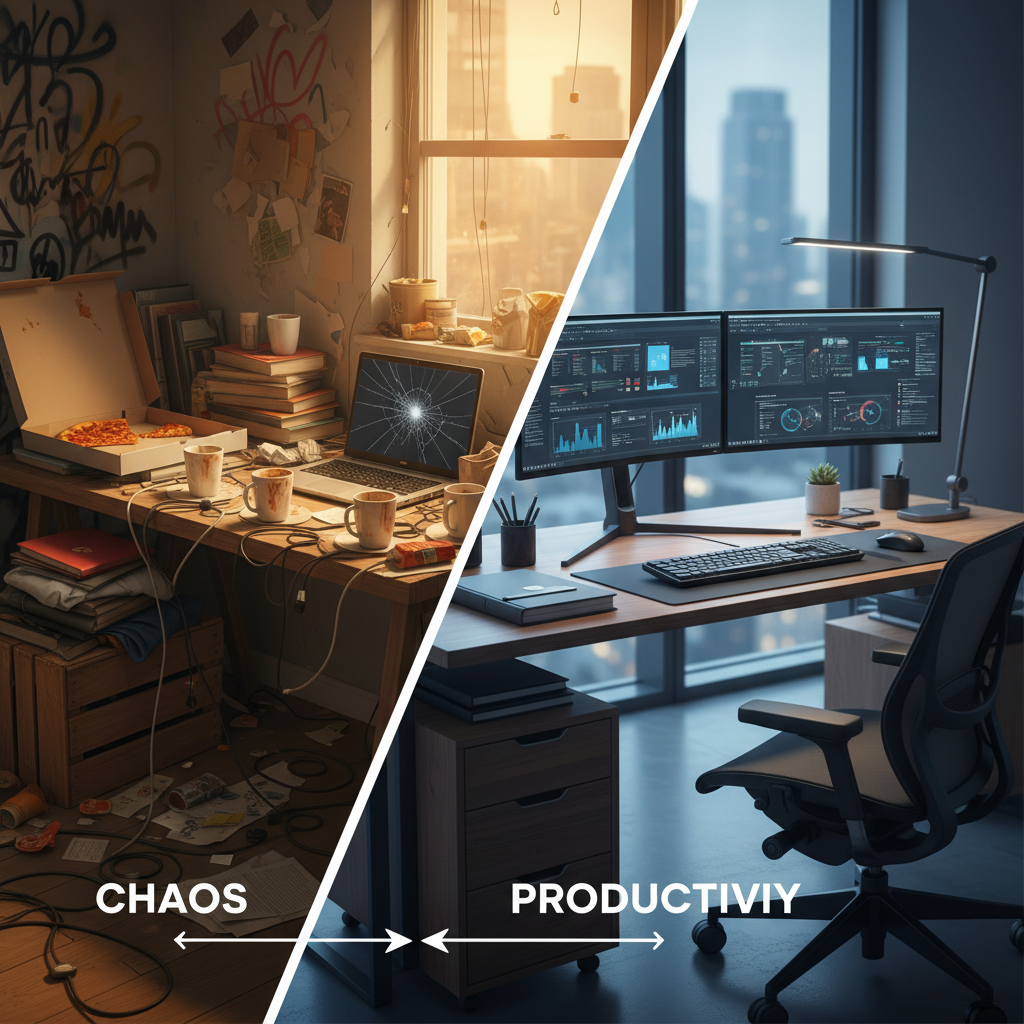
You’ve been remote for a while now. Maybe years. You’ve got a routine. Coffee at your desk by 8:30, Slack open, maybe a meeting or two. It works. Mostly.
But here’s what you’re not noticing: that nagging neck pain that started six months ago. The way your productivity craters after lunch. How you’re squinting at your laptop screen more than you used to. The fact that your “home office” is actually a corner of your dining room table.
Your workspace is silently sabotaging you. And the longer you ignore it, the more it costs you—in health, in focus, in career momentum.
This isn’t about buying expensive gear or copying some influencer’s aesthetic setup. It’s about understanding why your current arrangement is holding you back and making targeted changes that actually matter. Whether you’re breaking into remote IT or you’ve been working from home for years, these fundamentals apply.
The Hidden Costs of a Bad Setup
Let’s quantify what you’re losing before we fix it.
The Productivity Drain
A study from the Cornell University Ergonomics Lab found that workers in poorly designed workspaces lose up to 40 minutes per day to discomfort-related distraction. That’s over three hours per week spent fidgeting, stretching, or just being uncomfortable enough that you can’t focus.
For IT professionals, the cost compounds. Debugging requires sustained concentration. A single context switch—including the mental context switch of realizing your back hurts—adds cognitive load that takes 23 minutes to fully recover from, according to UC Irvine research.
If you’re studying for certifications on top of a full-time job, those lost focus hours are devastating.
The Health Tax
Repetitive strain injuries (RSIs) are rampant in IT. Carpal tunnel, tennis elbow, neck strain, lower back problems—these aren’t badges of honor. They’re preventable conditions that can sideline your career. If you’re already dealing with burnout symptoms, a poor workspace makes recovery harder.
The Bureau of Labor Statistics reports that musculoskeletal disorders account for 33% of all worker injury and illness cases. Remote workers often face higher risks because nobody’s checking that their setup meets OSHA guidelines.
Here’s the uncomfortable truth: your employer isn’t coming to audit your home office ergonomics. If you don’t protect yourself, nobody will.
The Career Perception Problem
This one’s subtle but real. Your background on video calls affects how people perceive you.
When you’re on camera from your bedroom with an unmade bed behind you, or from a cluttered kitchen corner with poor lighting, it registers—consciously or not—as “unprofessional.” Hiring managers notice. Leadership notices. That perception compounds over time, especially when you’re competing for promotions against colleagues with polished home setups.
Fair? No. Real? Absolutely.
Your Monitor Setup Is Wrong
Let’s start with the most impactful change you can make: your display situation.
The Laptop-Only Problem
If you’re working primarily from a laptop screen, you’re handicapping yourself in at least three ways:
-
Screen size limits context. IT work often requires multiple windows—terminal, browser, documentation, chat. On a 13” or 15” screen, you’re constantly switching between them. That switching has cognitive costs. If you’re working with the command line regularly, you know how valuable screen real estate is.
-
Laptop ergonomics are terrible. The screen is too low, which forces your neck to tilt downward. The keyboard is attached to the screen, so you can’t optimize both positions independently. It’s a design made for portability, not productivity.
-
Resolution constraints. Many IT tasks—reading log files, reviewing code, analyzing dashboards—benefit from more visual real estate. Cramming them onto a laptop screen creates eye strain.
The Fix: External Monitor(s)
At minimum, add one external monitor positioned at eye level. Your line of sight should hit the top third of the screen when you’re looking straight ahead.
For IT work specifically, consider these configurations:
Budget option (~$200): A single 27” 1440p monitor on an adjustable arm. Position your laptop to the side as a secondary display for chat and email.
Mid-range option (~$400-600): Dual 27” monitors or a single 34” ultrawide. The ultrawide works well for terminal splits and side-by-side document comparison. Dual monitors give you more flexibility for separating contexts (code on one, docs on the other).
Serious setup (~$800+): A 34-38” ultrawide as primary with a vertical 27” monitor on the side for documentation, chat, and reference material. This is the configuration that most senior IT professionals land on after years of iteration.
The monitor arm matters. Don’t cheap out on a fixed stand that you can’t adjust. A VESA-compatible arm (Amazon Basics makes a decent $25 option) lets you position screens exactly where they need to be.
Refresh Rate and Panel Type
For most IT work, 60Hz is fine. You’re not gaming. A higher refresh rate (144Hz) can reduce eye strain during extended use, but it’s not essential.
Panel type matters more. IPS panels offer better color accuracy and viewing angles than TN panels. If you’re doing any design work or need to see subtle color differences in monitoring dashboards, IPS is worth the slight premium.
The Ergonomics That Actually Matter
Beyond monitors, three ergonomic factors have outsized impact: seating, keyboard/mouse position, and lighting.
Seating: The $300 Chair Problem
The office chair market is a mess of $1,500 Herman Miller chairs and $80 Amazon gaming chairs with “ergonomic” in the name but nothing to back it up.
Here’s what you actually need:
- Adjustable seat height so your feet sit flat on the floor with thighs parallel to ground
- Lumbar support that actually contacts your lower back
- Adjustable armrests that allow your elbows to rest at 90 degrees while typing
- Breathable material if you run hot (mesh backs are common for this reason)
The sweet spot for most people is the $300-$500 range. The Autonomous ErgoChair, SecretLab Titan (despite the gaming aesthetic), and used Herman Miller Aeron chairs all hit this price point and deliver on the fundamentals.
That said: an $80 chair you actually sit in correctly is better than a $1,500 chair you slouch in. The furniture doesn’t fix bad posture habits.
Keyboard and Mouse Positioning
Your keyboard should be positioned so that your elbows stay at roughly 90 degrees while typing, with wrists straight (not bent upward toward the keys).
For many people, this means a keyboard tray that sits below desk height. If your desk is standard height (29-30 inches), your keyboard is probably too high when placed on the desk surface.
The mouse should be at the same height as the keyboard. If you’re reaching up or out to use your mouse, you’re creating strain patterns that will eventually cause problems.
Split keyboards (like the Kinesis Advantage or cheaper Microsoft Sculpt) can help if you’re already experiencing wrist issues. They’re not necessary for everyone, but for IT professionals doing 8+ hours of typing daily—especially those writing scripts or managing systems—they’re worth considering.
Lighting: The Underrated Factor
Most home offices have terrible lighting. Either you’re backlit by a window (which makes you a silhouette on video calls) or you’re in a dim corner relying on a single overhead fixture.
Here’s what works:
For your eyes: Indirect, diffused light reduces screen glare. A bias light behind your monitor (an LED strip on the back of your display) reduces eye strain by minimizing the contrast between your bright screen and dark surroundings.
For video calls: Front or 45-degree lighting. A simple ring light ($25-50) or a desk lamp positioned to one side makes a dramatic difference. Key light should be in front of you or to the side, never directly behind you. This matters especially for virtual interviews where first impressions are everything.
For circadian rhythm: Exposure to bright light in the morning helps regulate your sleep schedule. If your home office has a window, position your desk to get that morning light without creating screen glare.
Network Security: Your Home Office Attack Surface
You’re an IT professional. You know better than most how insecure home networks typically are. The question is: have you actually done anything about your own setup?
The Risks Are Real
Your home network is probably shared with:
- Smart TVs that get firmware updates approximately never
- IoT devices with hardcoded credentials
- Kids’ devices that download who-knows-what
- A router you haven’t logged into since you set it up three years ago
Meanwhile, you’re VPNing into production systems, accessing sensitive customer data, and handling credentials that could cause serious damage if compromised. If you’re in cybersecurity or have elevated access, the stakes are even higher.
If your employer’s security team did a home network assessment, would you pass?
Segmentation: The Minimum
At bare minimum, separate your work devices from your general home network. Many consumer routers support VLANs or guest networks. Put your IoT devices and family devices on one network segment, and keep your work devices on another.
This doesn’t require enterprise equipment. A consumer router with VLAN support (like the TP-Link Omada line or Ubiquiti EdgeRouter) can handle this for under $100. If you’re foggy on how networking fundamentals work, now’s the time to learn—you’re protecting your livelihood.
DNS-Level Filtering
Running Pi-hole or a similar DNS-level filter blocks malicious domains before they can establish connections. It’s a homelab project that takes an afternoon and provides ongoing protection. If you’ve been meaning to build a homelab, this is a practical starting point.
VPN Considerations
If your employer requires a VPN, you’re probably already covered. But if you’re working as a contractor, freelancing, or working for a company with lax security requirements, consider running your own VPN for outbound traffic when connecting to sensitive resources.
This is especially important if you ever work from coffee shops, hotels, or other public networks. A compromised network upstream from you can intercept traffic you thought was secure.
The Physical Space Itself
Beyond equipment, the physical characteristics of your workspace matter.
Dedicated vs. Shared Space
Having a door that closes is worth more than most people realize. Privacy and focus matter, sure. But the bigger win is psychological separation between “work” and “home.”
When your office is your living room, you never fully leave work. That background stress builds. And when you try to relax in that same space, work anxiety creeps in. Remote work burnout often stems from this lack of boundaries.
If a separate room isn’t possible, create separation through other means:
- A folding screen or curtain that visually separates the workspace
- A specific chair and desk that you only use for work
- Rituals that signal the start and end of the workday (changing clothes, going for a walk, physically packing up equipment)
Noise Management
IT work requires concentration. If your workspace is in a high-traffic area of your home, consider:
Active noise cancellation (ANC) headphones: The Sony WH-1000XM series and Bose QuietComfort headphones are industry standards. They don’t eliminate all noise, but they dramatically reduce background chatter and household sounds.
Acoustic panels: These reduce echo and ambient noise. They’re particularly helpful for video calls—a room with hard floors and walls creates an echoey quality that sounds unprofessional.
White noise: A fan or dedicated white noise machine can mask inconsistent background noise (dogs barking, neighbors, traffic) that headphones don’t fully block.
Climate Control
Working in a room that’s too hot or too cold hurts productivity. If your HVAC doesn’t adequately serve your workspace:
- A small desk fan for personal cooling
- A space heater (used safely, away from cables) for winter months
- Temperature monitoring to identify patterns (many smart thermometers log data over time)
The Budget Reality Check
Not everyone can drop $2,000 on a home office overnight. Here’s how to prioritize if you’re working with limited funds:
Phase 1: The Essentials (~$200-300)
- An external monitor (even a used 24” 1080p is better than laptop-only)
- A monitor arm or stand to position it at eye level
- A separate keyboard and mouse so you can position the laptop screen appropriately
Phase 2: Comfort Improvements (~$300-500)
- A proper desk chair with lumbar support
- A desk lamp for task lighting
- A webcam upgrade (if you’re on calls frequently)
Phase 3: Optimization (~$500+)
- Dual monitors or ultrawide upgrade
- Acoustic treatment
- Network upgrades for security and performance
- Standing desk or sit-stand converter
If you’re negotiating a job offer, equipment stipends are often available. Many remote-first companies provide $500-$2,000 for home office setup. Ask—even if it’s not in the standard offer.
Tax Considerations
If you’re in the United States and your home office qualifies, you may be able to deduct home office expenses. The requirements are:
- The space must be used “regularly and exclusively” for work
- It must be your principal place of business
Self-employed IT professionals and 1099 contractors can typically claim these deductions. W-2 employees generally cannot (this changed with the 2017 tax law). Understanding your total compensation includes knowing what you can and can’t deduct.
The simplified method allows a $5 per square foot deduction, up to 300 square feet ($1,500 max). The regular method requires tracking actual expenses but can yield larger deductions.
Consult a tax professional for your specific situation—this isn’t tax advice. But don’t leave money on the table if you qualify.
Maintenance and Iteration
Your home office isn’t a one-time project. It evolves with your work.
Regular Assessment
Every six months, evaluate:
- Is anything causing physical discomfort?
- Has your work changed in ways that require different equipment?
- Are there new skills you’re developing that need specific accommodations?
Upgrading Intelligently
Resist the urge to upgrade everything at once. When you change multiple variables simultaneously, you can’t identify what’s actually helping.
Make one change, use it for a few weeks, assess the impact, then consider the next change.
Common Mistakes to Avoid
The “I’ll Use the Living Room” Trap
Working from your couch or dining table feels flexible. It’s actually a recipe for both physical problems and work-life blur. Your body needs consistent positioning, and your mind needs spatial separation.
The Over-Investment in Aesthetics
RGB lighting and matching accessories don’t improve productivity. They’re fine if you enjoy them, but don’t prioritize looks over function. The monitor arm placement matters more than whether it’s silver or black.
The “Good Enough” Plateau
The danger with home office setups is that you adapt to dysfunction. Your neck hurts, but you’ve had that for a year, so it’s “normal.” You squint at your screen, but you’ve always done that.
Don’t normalize problems. Address them.
Ignoring the Basics for Fancy Gear
A standing desk converter is useless if you never use it because you haven’t built the habit. ANC headphones don’t help if your real problem is that your desk faces the window and you’re distracted by movement outside.
Solve the fundamental issues before chasing advanced solutions.
FAQ
How much should I spend on a home office setup?
For an IT professional working remotely full-time, plan for $800-$1,500 to get a genuinely good setup. You can start with $200-$300 for the essentials (external monitor, proper keyboard/mouse, basic chair) and upgrade over time. Don’t try to match YouTube home office tours—those are optimized for content, not work.
My employer provides a laptop but no equipment stipend. Should I invest my own money?
Yes, within reason. Your health and productivity affect your career outcomes. Think of it as investing in your primary income-generating asset: yourself. That said, always ask your employer first—equipment stipends are increasingly common, especially at remote-friendly companies.
I work in a small apartment with no dedicated room. Is a proper home office even possible?
Possible, yes. Ideal, no. Focus on the highest-impact changes: an external monitor you can store away when not working, a chair that serves double duty (some dining chairs have decent ergonomics), and headphones for focus and calls. Create ritual separation even if you can’t have physical separation.
Do I really need multiple monitors for IT work?
You don’t need them. But if you spend significant time switching between windows—especially when troubleshooting complex issues or running diagnostics—they pay for themselves quickly in productivity gains. A single ultrawide can replace dual monitors if desk space is limited.
What’s the one change that makes the biggest difference?
For most people: getting the laptop screen up to eye level (via external monitor or laptop stand) and using a separate keyboard. This single change addresses the neck strain that affects nearly everyone who works from a laptop for extended periods.
The Bottom Line
Your home office is infrastructure. The foundation that supports your work output, your physical health, and your career longevity. Treat it like the investment it is.
The setup you tolerate becomes the constraint you don’t notice. The neck pain you normalize becomes the chronic condition you manage. The poor video presence you ignore becomes the unconscious bias that affects your promotions.
You don’t need to spend a fortune or achieve Instagram perfection. You need to address the fundamentals: display position, seating, lighting, and network security. Everything else is optimization.
Take an honest look at your workspace tomorrow morning. Not through the lens of “it works well enough” but through the lens of “is this actively supporting or actively hindering my work?”
If the answer is hindering, start fixing it. Your 2 PM self will thank your 9 AM self.