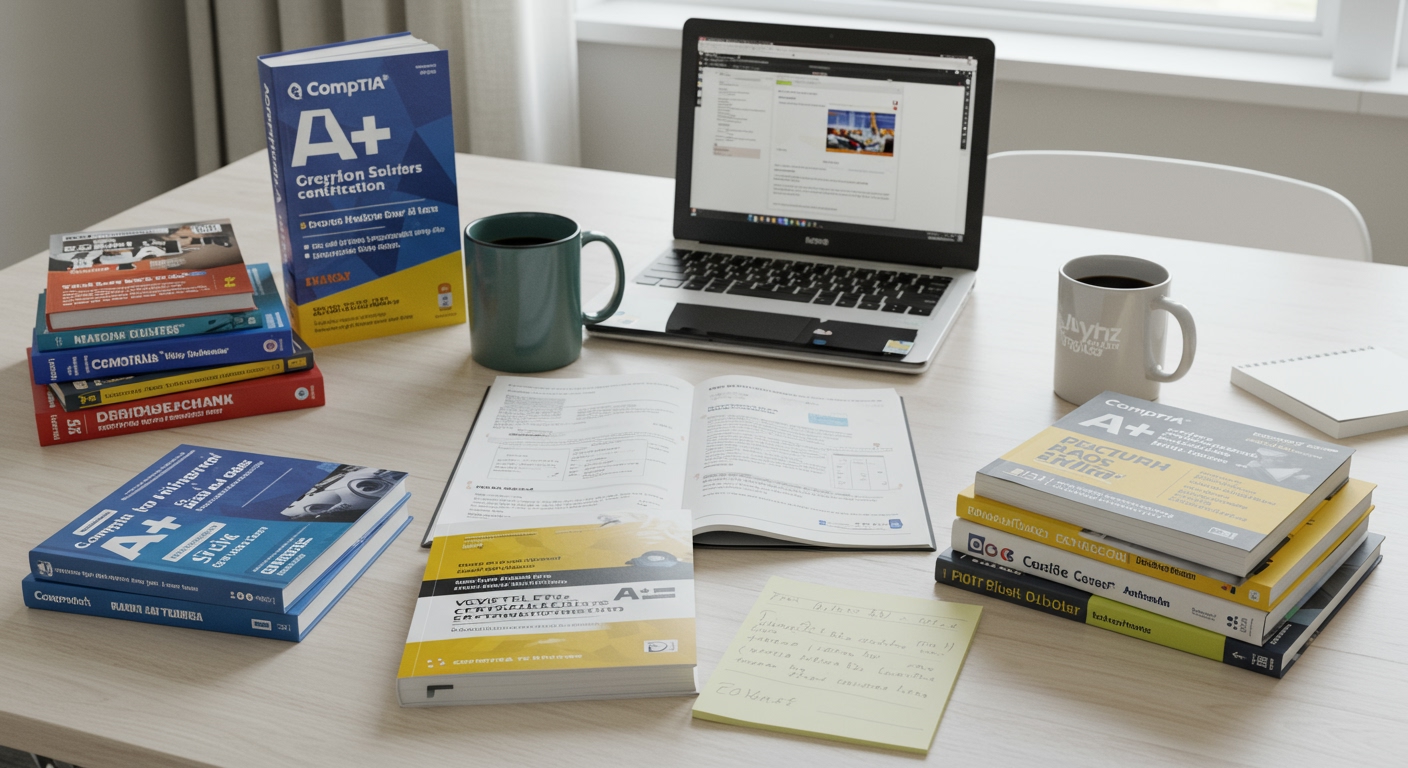
CompTIA A+ 220-1102 Study Guide
The CompTIA A+ 220-1102 exam is the second of two exams required for CompTIA A+ certification. While the 1101 focuses on hardware and networking, the 1102 exam tests your knowledge of operating systems, security, software troubleshooting, and operational procedures.
This comprehensive study guide covers all exam objectives to help you prepare effectively and pass on your first attempt.
Exam Overview
| Detail | Information |
|---|---|
| Exam Code | 220-1102 |
| Number of Questions | Maximum of 90 |
| Question Types | Multiple choice, performance-based |
| Time Limit | 90 minutes |
| Passing Score | 700 (on a scale of 100-900) |
| Prerequisites | None (but 1101 required for full certification) |
Exam Objectives Breakdown
The 220-1102 exam covers four main domains:
| Domain | Weight |
|---|---|
| 1.0 Operating Systems | 31% |
| 2.0 Security | 25% |
| 3.0 Software Troubleshooting | 22% |
| 4.0 Operational Procedures | 22% |
Domain 1: Operating Systems (31%)
This is the largest domain and covers Windows, macOS, Linux, and mobile operating systems.
1.1 Windows Versions and Features
You need to understand the differences between Windows editions:
Windows 10/11 Editions:
- Home - Consumer-focused, basic features
- Pro - Business features including BitLocker, Remote Desktop hosting, domain join
- Pro for Workstations - High-performance hardware support
- Enterprise - Volume licensing, advanced security features
Key Features to Know:
- BitLocker and BitLocker To Go (drive encryption)
- Remote Desktop Protocol (RDP)
- Group Policy (gpedit.msc)
- Domain join vs workgroup
- Windows Defender and Windows Security
1.2 Windows Settings and Control Panel
Know both the modern Settings app and classic Control Panel:
Settings App Categories:
- System (Display, Sound, Notifications, Power)
- Devices (Bluetooth, Printers, Mouse)
- Network & Internet
- Personalization
- Apps
- Accounts
- Time & Language
- Gaming
- Privacy
- Update & Security
Control Panel Applets:
- Programs and Features
- Device Manager
- Network and Sharing Center
- System (sysdm.cpl)
- User Accounts
- Indexing Options
- Administrative Tools
1.3 Windows Command Line Tools
Essential commands you must know:
# Navigation and File Management
cd, dir, md/mkdir, rd/rmdir, copy, xcopy, robocopy

# System Information
systeminfo, hostname, whoami

# Network Commands
ipconfig, ping, tracert, netstat, nslookup, net user, net use

# Disk Management
diskpart, chkdsk, sfc /scannow, DISM

# Process Management
tasklist, taskkill

# Group Policy
gpupdate, gpresult
PowerShell Equivalents:
Get-Process, Stop-Process
Get-Service, Start-Service, Stop-Service
Get-EventLog
Get-NetIPConfiguration
Test-Connection
1.4 Windows Networking
Understand network configuration:
- IP addressing (static vs DHCP)
- DNS configuration
- Workgroups vs domains
- Network shares and permissions (NTFS vs Share)
- Mapped drives
- Proxy settings
- Windows Firewall configuration
1.5 macOS and Linux Basics
macOS:
- System Preferences/Settings
- Finder and file management
- Terminal and basic commands
- Time Machine backups
- FileVault encryption
- Keychain Access
- Disk Utility
- Force Quit Applications
Linux:
- Common distributions (Ubuntu, Fedora, CentOS)
- Terminal commands (ls, cd, pwd, grep, chmod, chown, sudo, apt/yum)
- File system structure (/home, /etc, /var, /usr)
- Package management
- Basic shell scripting
1.6 Mobile Operating Systems
iOS and Android:
- App installation and management
- OS updates
- Account setup (Apple ID, Google Account)
- Screen security (PIN, pattern, biometrics)
- Location services
- Mobile device synchronization
- Backup methods
Domain 2: Security (25%)
Security is critical for IT professionals. This domain covers threats, prevention, and best practices.
2.1 Physical Security
- Bollards and fencing
- Security guards
- Badge readers and smart cards
- Biometrics (fingerprint, retina, facial recognition)
- Lighting and cameras
- Magnetometers and mantraps
- Cable locks for equipment
2.2 Logical Security
Authentication Methods:
- Multi-factor authentication (MFA)
- Something you know (password, PIN)
- Something you have (smart card, token)
- Something you are (biometrics)
Access Control:
- Principle of least privilege
- Access control lists (ACLs)
- User Account Control (UAC)
- NTFS permissions
2.3 Wireless Security
Know these wireless security protocols:
| Protocol | Security Level | Notes |
|---|---|---|
| WEP | Very Weak | Deprecated, do not use |
| WPA | Weak | Legacy, avoid if possible |
| WPA2 | Strong | Current standard |
| WPA3 | Strongest | Latest standard |
Best Practices:
- Disable SSID broadcast (limited effectiveness)
- MAC filtering (limited effectiveness)
- Strong encryption (WPA2/WPA3)
- Complex passwords
- Guest network isolation
2.4 Malware Types and Removal
Malware Categories:
- Virus - Requires host file, spreads through user action
- Worm - Self-replicating, spreads automatically
- Trojan - Disguised as legitimate software
- Rootkit - Hides deep in the system
- Ransomware - Encrypts files, demands payment
- Spyware - Monitors user activity
- Keylogger - Records keystrokes
- Cryptominer - Uses system resources for mining
Malware Removal Process:
- Identify symptoms
- Quarantine the system
- Disable System Restore
- Remediate (safe mode, scan, remove)
- Schedule scans and updates
- Enable System Restore and create restore point
- Educate end user
2.5 Social Engineering
Recognize these attack types:
- Phishing - Fraudulent emails seeking credentials
- Spear phishing - Targeted phishing attacks
- Whaling - Targeting executives
- Vishing - Voice phishing (phone calls)
- Smishing - SMS phishing
- Tailgating - Following authorized person into secure area
- Shoulder surfing - Observing screens/keyboards
- Dumpster diving - Searching trash for information
2.6 Windows Security Settings
- Windows Defender Antivirus
- Windows Firewall
- BitLocker configuration
- EFS (Encrypting File System)
- User Account Control (UAC) levels
- Login options and requirements
Domain 3: Software Troubleshooting (22%)
This domain tests your ability to diagnose and resolve software issues.
3.1 Troubleshooting Methodology
CompTIA’s official troubleshooting steps:
- Identify the problem - Gather information, question users, identify symptoms
- Establish a theory - Consider multiple causes, research if needed
- Test the theory - Confirm or establish new theory
- Establish a plan of action - Plan the fix and consider impacts
- Implement the solution - Or escalate if necessary
- Verify functionality - Test and implement preventive measures
- Document findings - Record actions and outcomes
3.2 Windows Troubleshooting
Boot Issues:
- Boot into Safe Mode (F8 or Shift+Restart)
- Use Windows Recovery Environment (WinRE)
- Startup Repair
- System Restore
- Reset this PC
- sfc /scannow and DISM commands
Common Issues and Solutions:
| Symptom | Possible Causes | Solutions |
|---|---|---|
| Blue Screen (BSOD) | Driver issues, hardware failure, memory | Safe Mode, update drivers, check RAM |
| Slow performance | Too many startup programs, malware, low resources | Task Manager, msconfig, malware scan |
| Application crashes | Corrupted files, compatibility, updates | Reinstall, compatibility mode, updates |
| No network | Cable, adapter, IP config, DNS | ipconfig, ping, check physical |
3.3 Application Installation and Removal
- MSI installers
- Setup.exe
- Windows Store apps
- Programs and Features for removal
- Application compatibility settings
- 32-bit vs 64-bit applications
3.4 Mobile Device Troubleshooting
- App not loading - Force stop, clear cache, reinstall
- Slow performance - Close apps, restart, check storage
- Battery drain - Check battery health, close background apps
- Connectivity issues - Toggle airplane mode, forget/reconnect network
- Screen issues - Restart, check display settings
Domain 4: Operational Procedures (22%)
This domain covers professional practices and documentation.
4.1 Documentation Best Practices
Types of Documentation:
- Network diagrams and topologies
- Knowledge bases and articles
- Incident documentation
- Standard operating procedures (SOPs)
- Change management documentation
- Asset inventory
Ticketing System Best Practices:
- Clear problem description
- Steps already taken
- Category and priority assignment
- Regular updates
- Resolution documentation
- User communication
4.2 Change Management
The change management process:
- Request - Document the proposed change
- Review - Assess impact and risk
- Approve - Get proper authorization
- Test - Verify in test environment
- Schedule - Plan implementation window
- Implement - Execute the change
- Document - Record all details and outcomes
4.3 Backup and Recovery
Backup Types:
| Type | Description | Pros | Cons |
|---|---|---|---|
| Full | All selected data | Complete restore | Time/space intensive |
| Incremental | Changed since last backup | Fast, small | Slow restore |
| Differential | Changed since last full | Faster restore than incremental | Larger than incremental |
Backup Best Practices:
- 3-2-1 Rule: 3 copies, 2 media types, 1 offsite
- Regular testing of restores
- Encryption of backup data
- Automated scheduling
- Documentation of procedures
4.4 Safety Procedures
Equipment Safety:
- ESD (electrostatic discharge) prevention
- Proper lifting techniques
- Equipment grounding
- Disconnect power before servicing
- Cable management
Environmental Concerns:
- Proper disposal of batteries
- Recycling of electronics (e-waste)
- Toner cartridge disposal
- CRT monitor handling (contain lead)
- MSDS/SDS compliance
4.5 Communication and Professionalism
- Active listening
- Clear communication
- Setting and meeting expectations
- Dealing with difficult customers
- Maintaining confidentiality
- Cultural sensitivity
- Professional appearance
4.6 Scripting Basics
Understand basic scripting concepts:
- Variables and data types
- Loops (for, while)
- Conditionals (if/else)
- Comments
- Basic syntax for:
- Batch files (.bat)
- PowerShell (.ps1)
- Bash (.sh)
- Python (.py)
- JavaScript (.js)
Study Tips for Success
1. Hands-On Practice
Theory alone won’t prepare you. Set up practice environments:
- Use virtual machines to practice Windows, Linux, and macOS
- Configure network settings
- Practice command-line tools
- Troubleshoot common issues
2. Use Multiple Resources
Combine different study materials:
- Official CompTIA study guide
- Video courses (Professor Messer, free on YouTube)
- Practice exams
- Flashcards for memorization
- Lab environments
3. Focus on Weak Areas
After taking practice tests, identify domains where you score lowest and dedicate extra time to those topics.
4. Understand Performance-Based Questions
PBQs require you to perform tasks in a simulated environment. Practice:
- Command-line operations
- Network configuration
- Troubleshooting scenarios
- Security configurations
5. Time Management
With 90 questions in 90 minutes, you have about 1 minute per question. Flag difficult questions and return to them.
Practice Resources
Free Resources
- Professor Messer’s A+ Course - Free video training
- ExamCompass - Free practice questions
- CompTIA’s official exam objectives PDF
Paid Resources
- CompTIA CertMaster Practice
- Jason Dion’s Practice Exams (Udemy)
- Mike Meyers’ Total Seminars
- Kaplan IT Training
Frequently Asked Questions
How long should I study for the 1102?
Most candidates spend 4-8 weeks studying, depending on experience level. If you’re already working in IT support, you may need less time.
Should I take 1101 or 1102 first?
CompTIA recommends taking 1101 first since some 1102 concepts build on 1101 knowledge. However, you can take them in either order.
How many times can I retake the exam?
You can retake the exam as many times as needed, but you must wait 14 days between attempts. There’s no waiting period after the first attempt.
Is the A+ certification worth it?
Yes, especially for entry-level IT positions. The A+ is widely recognized and often required for help desk and technical support roles. See our IT certification guide for more career advice.
How long is the certification valid?
CompTIA A+ is valid for 3 years. You can renew by earning continuing education units (CEUs) or passing a higher-level CompTIA exam.
Conclusion
The CompTIA A+ 220-1102 exam tests practical knowledge that every IT professional needs. Focus on understanding concepts rather than memorizing facts, and supplement your studying with hands-on practice.
Remember: the goal isn’t just to pass the exam, but to build a foundation for your IT career. The skills you learn preparing for the A+ will serve you throughout your professional journey.
Ready to advance your IT career? Check out our guides on penetration testing and security tools for your next steps after certification.
Good luck with your exam!